
Sagemath安装
Sagemath安装
Sagemath各版本简要信息:https://wiki.sagemath.org/ReleaseTours/
github项目:https://github.com/sagemath/sage/
aliyun镜像:https://mirrors.aliyun.com/sagemath/src/
图便捷可下exe(仅支持到9.3):https://mirrors.aliyun.com/sagemath/win/index.html
docker
有docker环境可选择装在docker上,执行以下指令即可。
1 | docker pull sagemath/sagemath |
启动docker之后在cmd/PowerShell中输入docker run -it sagemath/sagemath,即可使用。docker里的sage镜像内置jupter,可以通过网页使用。
1 | docker run -p8888:8888 sagemath/sagemath sage-jupyter |
终端会出现带token的URL,将其放入浏览器URL栏即可。
Linux集成库安装
很多源可能没有sagemath的包,直接apt找不到需要换源,下面是一个可用源,国外源记得提速。
1 | echo 'deb http://deb.debian.org/debian bookworm main contrib non-free' | sudo tee -a /etc/apt/sources.list |
Linux conda编译
官网上说编译后的sage执行效率比apt里的会更高,推荐选择这个最麻烦的方式。
首先需要下载几个工具
Miniconda3:解决依赖问题和环境污染问题的,Sagemath好像从9.6后就推荐用Conda解决依赖包的问题,然后就下架了binary。Mambaforce:按照官网教程来即可https://doc.sagemath.org/html/en/installation/conda.htmlSageMath 10.2的源码
1 | wget https://repo.anaconda.com/miniconda/Miniconda3-latest-Linux-x86_64.sh |
然后Miniconda3和Mambaforce下载下来的都是安装脚本,直接运行按提示安装。
1 | sh Miniconda3-latest-Linux-x86_64.sh |
如无意外应该可以运行conda了,但终端执行命令会出现个烦人的(base),可以这样解决
1 | echo "conda deactivate" >> ~/.bashrc |
解压源码包,并进入目录
1 | tar xf ./sage-10.2.tar.gz |
在build之前先换一下Conda的源,创建~/.condarc并修改成清华镜像
1 | channels: |
安装Mamba
1 | conda install mamba |
在sage-10.2这个目录下依次执行命令,
1 | export SAGE_NUM_THREADS=24 |
之后使用sage,输入conda activate sage-dev,命令行开头弹出sage-dev,接着输入sage就能进入熟悉的界面。或者进入cd sage-10.2/,执行./sage。
参考官网文档:https://doc.sagemath.org/html/en/installation/conda.html
windows下的sage
https://mirrors.aliyun.com/sagemath/win/index.html
链接中直接下载安装程序,可按照自己需求自定义下载路径,因为直接使用黑框不太美观,而且复制不是用ctrl+v,而是shift+insert来着(有点忘了),反正不是非常方便,试着用两种方式解决
换窗口达到与Linux下等同效果
找到Sagemath这个快捷应用,因为是链接形式,可以看到属性里面有一栏目标,目标中有打开sage的指令,对这个目标进行修改,上面是原版的指令,下面是修改后的,可以看到原先调用的是mintty,但又通过它调用了bash,我们直接调用bash,就能达到与cmd打开一样的效果
1 | D:\scoop\apps\sagemath\current\runtime\bin\mintty.exe -t 'SageMath' /bin/bash --login -c '/opt/sagemath-*/sage' |
接下来点击打开还是与cmd一样的黑框,但背景与cmd不进行共享,可以单独设置,点窗口处的向下箭头,进入设置;滑到最后添加新配置文件,新建空配置文件,名称可以自定义,将命令行修改成sage内bash的地址,如上面的D:\scoop\apps\sagemath\current\runtime\bin\bash.exe,下方的外观内可修改背景图片和透明度,跟cmd美化类似,最后达到如下效果,复制也能用ctrl+v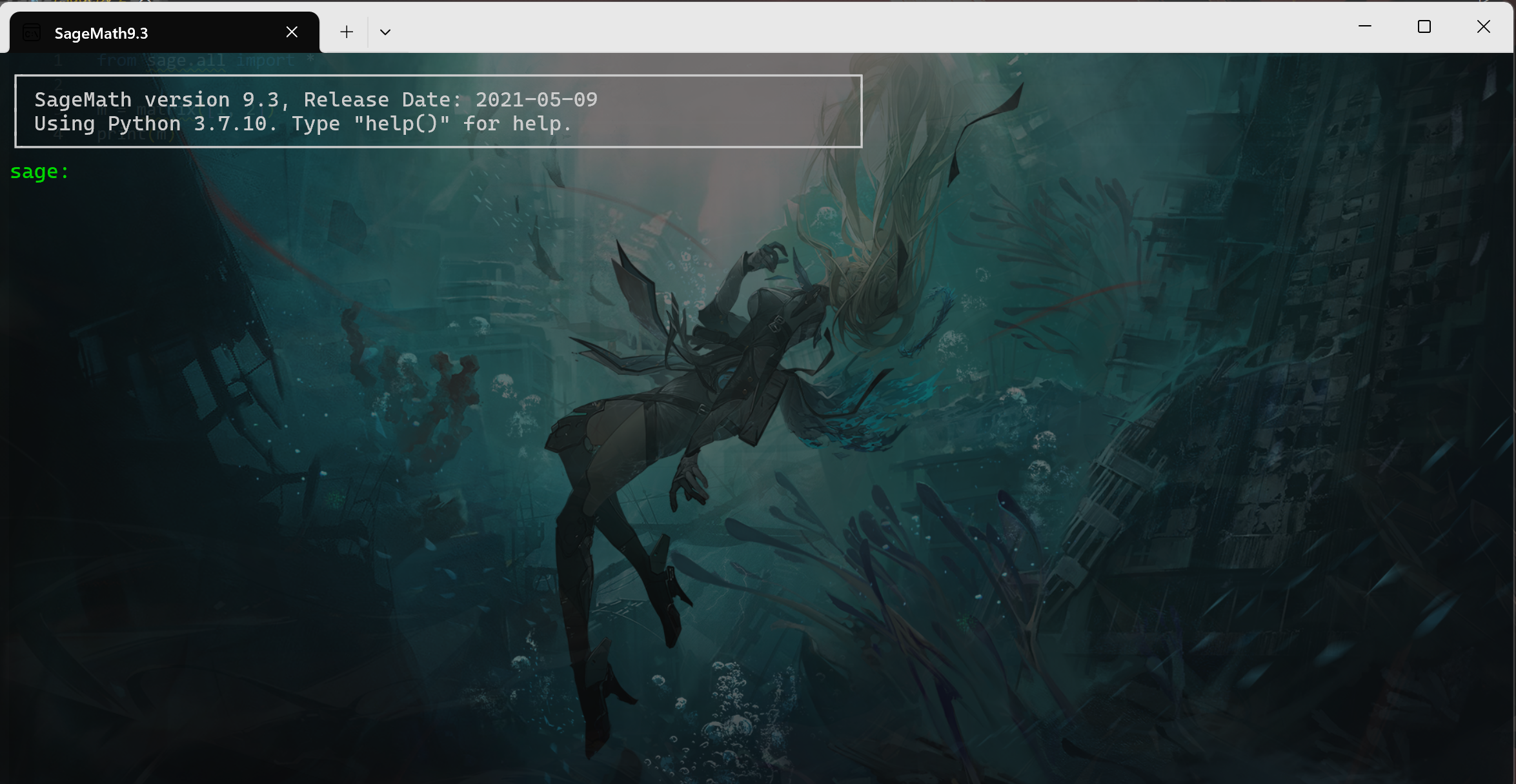
与vsc的衔接
这个方法实际上是先找到的,参考自https://blog.csdn.net/u010883831/article/details/128262134 ,正因为这篇文章才发现了上面那种用法,文章中因为他是wsl链接配置,故没问题,但用win下的sage时,需要修改文中所提到后缀*.sage,只要不是以.sage结尾即可,不然会报如下错误,系统将.sage识别为.sage.py,但实际并不存在该文件;
1 | FileNotFoundError: [Errno 2] No such file or directory: '/home/sage/d:\\ctf\\1.sage.py' |
通过这种方法相当于每一次执行都重启一遍sagemath,刚开始会有些等待时间;
-
首先下载
code runner插件 -
点击上方的搜索按键,输入
setting,找到setting.json文件,需要注意目录是C:>Users>xxx>AppData>Roaming的文件,本机是在这个默认路径下,其他机子未测试;不过也可以通过文章中提到一般,从设置中步入 -
进入
setting.json,找到code-runner.executorMap项,将python项设为null,(注意setting.json文件对格式非常严格,在每个键值对末尾都必须都逗号,最后一个可以不要,如果格式有问题,那么在设置里对文件进行修改是无法执行的,同时设定的参数也无法生效);1
2
3
4"code-runner.executorMap": {
"php": "php",
"python": null
}, -
找到
code-runner.executorMapByFileExtension项,修改成如下格式,.sa可以自定义名称,但不能改成.sage,不然得报错,路径记得替换成自己电脑路径,同时路径前面必须有\,bash.exe后面必须有\,同时单双引号闭合也必须一致,不然就无法使用。1
2
3
4"code-runner.executorMapByFileExtension": {
".sa": "cd $dir && \"D:\\scoop\\apps\\sagemath\\current\\runtime\\bin\\bash.exe\" --login -c '/opt/sagemath-9.3/sage $fullFileName'",
".py": "python",
},